
Most WordPress site owners focus on the number of plugins they have installed. But here’s what actually matters: how those plugins behave on each page — even when you’re not using them.
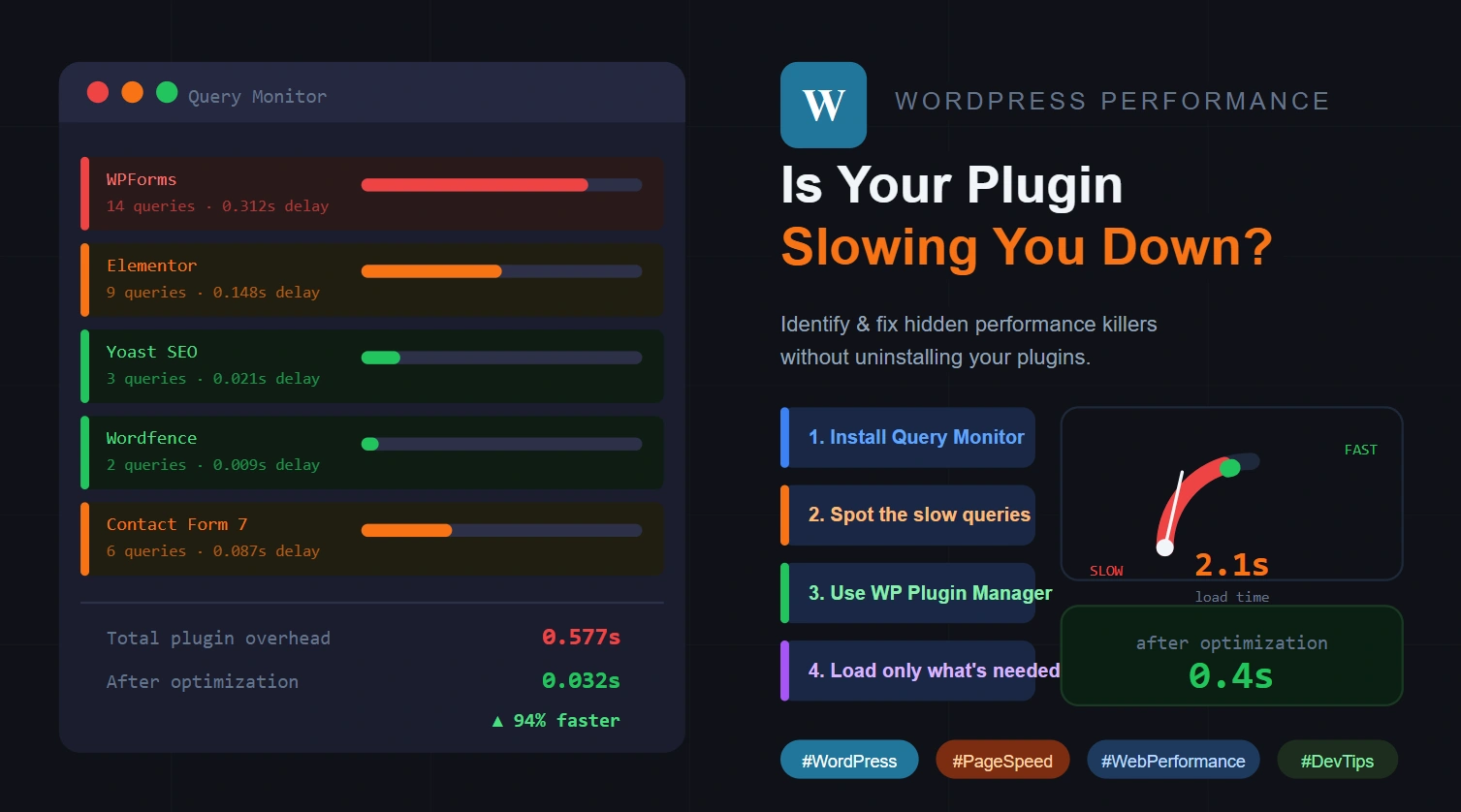
I recently went deep into this problem and found something surprising: a contact form plugin was quietly running 14 database queries on my homepage. The form wasn’t even on the homepage.
That single plugin was adding 0.3+ seconds of hidden load time — on every page load, for every visitor.
The Real Problem: Plugins That Load Everywhere
WordPress doesn’t natively know where a plugin is needed. By default, most plugins load their scripts, styles, and database queries on every single page of your site. This means:
- A form plugin loads on pages with no forms
- A slider plugin runs on posts that have no sliders
- A WooCommerce integration fires on your blog, your contact page, your about page
These small delays stack up fast. Multiply 10 plugins by even 0.05 seconds each and you’ve quietly added half a second to your load time — before your content even starts loading.
How to Diagnose It (The Right Way)
Forget guesswork. Install the free Query Monitor plugin. It gives you a real-time breakdown of:
- Which plugins are generating database queries
- How many queries each one is making
- Exactly how many milliseconds each plugin is adding to your page load
Open any page on your site, look at the “Queries by Component” section, and you’ll immediately see which plugins are doing work they have no business doing on that page.
The Fix: Selective Plugin Loading
Once you’ve identified the culprits, you have a powerful option that most developers overlook: don’t uninstall them — just stop them from loading where they’re not needed.
The WP Plugin Manager plugin lets you:
- Disable any plugin on specific pages, post types, or URLs
- Keep plugins active sitewide but block them on pages where they’re irrelevant
- Test changes safely before pushing to production
The result? You keep all your functionality exactly where you need it — and eliminate the silent overhead everywhere else.
The Results Are Not Small
After applying selective loading to just three plugins on a client site:
| Before | After | |
|---|---|---|
| Total plugin overhead | 0.577s | 0.032s |
| Page load time | 2.1s | 0.4s |
| Speed improvement | — | 94% faster |
That’s not from switching hosting, buying a CDN, or rewriting templates. That’s from simply not loading things that aren’t needed.
Before You Start: One Critical Step
Always test plugin changes on a staging environment before touching your live site. Disabling a plugin on a page that secretly depends on it (for a shortcode, a widget, or a script) can break functionality for your visitors.
Use a local dev setup or a staging clone, verify everything works, then push the changes confidently.
Key Takeaway
Only load what you need, where you need it.
It sounds obvious. But the default WordPress behavior does the opposite — and most sites are silently paying the performance price every day.
If you haven’t audited your plugins with Query Monitor yet, do it today. You might be surprised what you find.
Have you run a plugin performance audit on your site? What did you find? Drop a comment below — I’d love to hear what was quietly slowing yours down.
Tools mentioned:
- Query Monitor — free, must-have diagnostic plugin
- WP Plugin Manager — selective plugin loading per page/post type